bulk-action-importer
A lightweight importer for automatically uploading bulk action CSV files to the
RemotePhoto bulk action API. It ships as a Bash script for
Mac/Linux (importer.sh) and a PowerShell script for Windows (importer.ps1).
Drop CSV files into an import folder, run the importer on a schedule, and each file is uploaded to RemotePhoto and moved to a “done” folder so it is never sent twice.
[!IMPORTANT] CloudCard actively maintains this project and keeps it fully compatible with all RemotePhoto environments, including those managed by our partners. However, using this project is not directly supported by CloudCard or any partner unless your contract specifically includes it.
Network Diagram
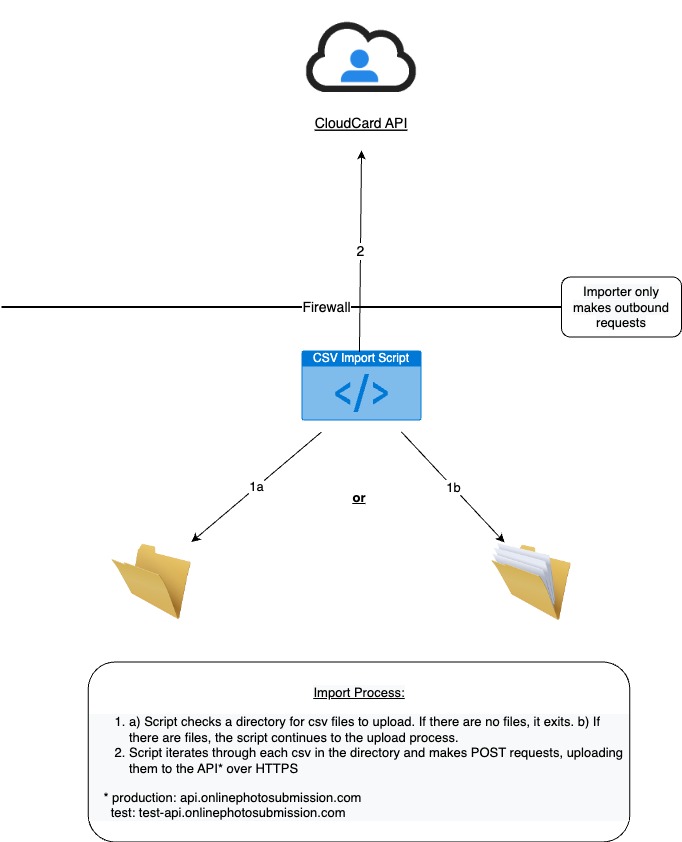
See also the following CloudCard Documentation:
- User’s Guide:
- Developer’s Guide:
How configuration works
This importer is remote-config first. Your operational settings live in RemotePhoto, not in files on your server.
- On your machine you set only four bootstrap values so the importer can find and authenticate with RemotePhoto.
- In RemotePhoto you manage everything else (import/done folders, the default action, column names, and any custom bulk-action fields) as Remote Config.
This means your team can view and change a customer’s settings centrally, without editing files on the customer’s server.
Installation
- Download the project zip file and unzip it to a permanent location.
- Create a service account in RemotePhoto for the importer and generate a Persistent Access Token (tutorial video).
- Keep only your platform’s files:
- Mac/Linux: you can delete the
.ps1files. - Windows: you can delete the
.shfiles.
- Mac/Linux: you can delete the
- Requirements:
- Mac/Linux:
curl(pre-installed on macOS and most Linux distributions). - Windows: PowerShell 5.1+ and
curl.exe(both included with Windows 10 and later).
- Mac/Linux:
Step 1 — Local configuration (bootstrap only)
Edit config.sh (Mac/Linux) or config.ps1 (Windows) and set only these
values:
| Setting | Description |
|---|---|
API_URL |
The RemotePhoto API base URL for your environment (see below). |
PERSISTENT_ACCESS_TOKEN |
The Persistent Access Token from your service account. |
REMOTE_CONFIG_ENABLED |
Set to true (Mac/Linux) or $true (Windows) to use Remote Config. |
INTEGRATION_NAME |
Your integration’s name exactly as it appears in RemotePhoto. |
API_URL values by environment:
| Environment | URL |
|---|---|
| Default (US) | https://api.onlinephotosubmission.com |
| Canadian customers | https://api.cloudcard.ca/ |
| Test instance | https://test-api.onlinephotosubmission.com/ |
| Transact customers | https://onlinephoto-api.transactcampus.net/ |
config.sh (Mac/Linux) example:
API_URL="https://api.onlinephotosubmission.com"
PERSISTENT_ACCESS_TOKEN="your-persistent-access-token"
REMOTE_CONFIG_ENABLED=true
INTEGRATION_NAME="Your Integration Name"
config.ps1 (Windows) example:
$API_URL = "https://api.onlinephotosubmission.com"
$PERSISTENT_ACCESS_TOKEN = "your-persistent-access-token"
$REMOTE_CONFIG_ENABLED = $true
$INTEGRATION_NAME = "Your Integration Name"
Everything else is configured in RemotePhoto (Step 2). The token is only ever shown masked (e.g.
****1234) in the importer’s output.
[!NOTE] The import and done directories are the one exception you may choose to keep local. We recommend managing them in RemotePhoto (Step 2) for central control, but because these paths are specific to each machine you can instead set
IMPORT_DIRECTORYandDONE_DIRECTORYin your local config file. If you set them in both places, the Remote Config value wins.
Optional local settings (all have sensible defaults — leave them unless you need to change them):
| Setting | Description |
|---|---|
FAILED_DIRECTORY |
Where CSVs the API rejects are moved. Defaults to a failed/ folder next to the importer. Can also be set via Remote Config. |
LOG_DIRECTORY |
Where dated log files are written. Defaults to a logs/ folder next to the importer. |
DEBUG |
Set to true / $true for verbose request tracing in the logs (tokens are always redacted). Defaults to off. |
Step 2 — Remote configuration (in RemotePhoto)
With REMOTE_CONFIG_ENABLED on, the importer logs in and pulls the rest of its
settings from your integration’s Remote Config in RemotePhoto. Add the properties
you need to that integration:
| Property | Description |
|---|---|
importDirectory |
Absolute path to the folder your CSV files are placed in. (Recommended here, or set IMPORT_DIRECTORY locally — see Step 1.) |
doneDirectory |
Absolute path to the folder successful CSV files are moved to. (Recommended here, or set DONE_DIRECTORY locally — see Step 1.) |
failedDirectory |
Absolute path to the folder rejected CSV files are moved to. (Optional; or set FAILED_DIRECTORY locally — see Step 1.) |
actionDefault |
The default bulk-action verb applied to each row (see table below). |
columnNames |
Comma-separated column names, if your CSV has no header row (e.g. email,identifier). |
fieldSeparator |
A custom delimiter if your files don’t use commas (e.g. \|). |
| (any other field) | Any additional property is forwarded to the bulk action API as a form field. |
actionDefault values:
| Verb | Effect |
|---|---|
CREATE |
Provisions users with a unique identifier; ignores those who already have one. |
UPDATE |
Updates existing users; ignores identifiers that don’t exist. |
CREATE_OR_UPDATE |
Creates a person, or updates them if they already exist. |
ARCHIVE |
Keeps the user’s data but marks them inactive. |
RESTORE |
Returns the user to an active state. |
ANONYMIZE |
Removes the user’s data but keeps the photo record. |
DELETE |
Removes all of the user’s data. |
[!NOTE] For security, Remote Config can never deliver secrets — any property containing
TOKENorPASSWORDis rejected — and it cannot override the localAPI_URL,REMOTE_CONFIG_ENABLED, orINTEGRATION_NAMEbootstrap values.
Running the importer
Open a terminal in the importer’s folder:
cd /path/to/bulk-action-importer
Mac/Linux:
./importer.sh
If needed, make it executable first: chmod +x importer.sh.
Windows:
./importer.ps1
If PowerShell blocks the script, allow local scripts (run PowerShell as Administrator):
Set-ExecutionPolicy RemoteSigned -Scope LocalMachine
Get-ExecutionPolicy -List   # confirm it worked
To run automatically, schedule the script with cron (Mac/Linux) or Task Scheduler (Windows).
Each run prints a configuration summary (with the token masked), uploads every *.csv
in the import directory, moves each file based on the result, and logs out.
Logs & failed files
- Logs: every run appends to a dated log file,
logs/importer-YYYY-MM-DD.log(override the location withLOG_DIRECTORY). The log includes the config summary, each file’s outcome, and a run summary. Tokens are always redacted. SetDEBUG=truefor verbose request tracing when troubleshooting. - Successful files move to your done directory.
- Rejected files (the API returned an error for them) move to your failed directory — never silently lost — and the API’s error is written to the log. Fix the file and drop it back into the import directory to retry.
- The importer exits with a non-zero status if any file failed, so a scheduled task can alert you.
Support
Support engineers: see docs/SUPPORT_GUIDE.md for a full,
plain-language walkthrough of how the importer works, the Remote Config security
rules, and an error-message troubleshooting table.